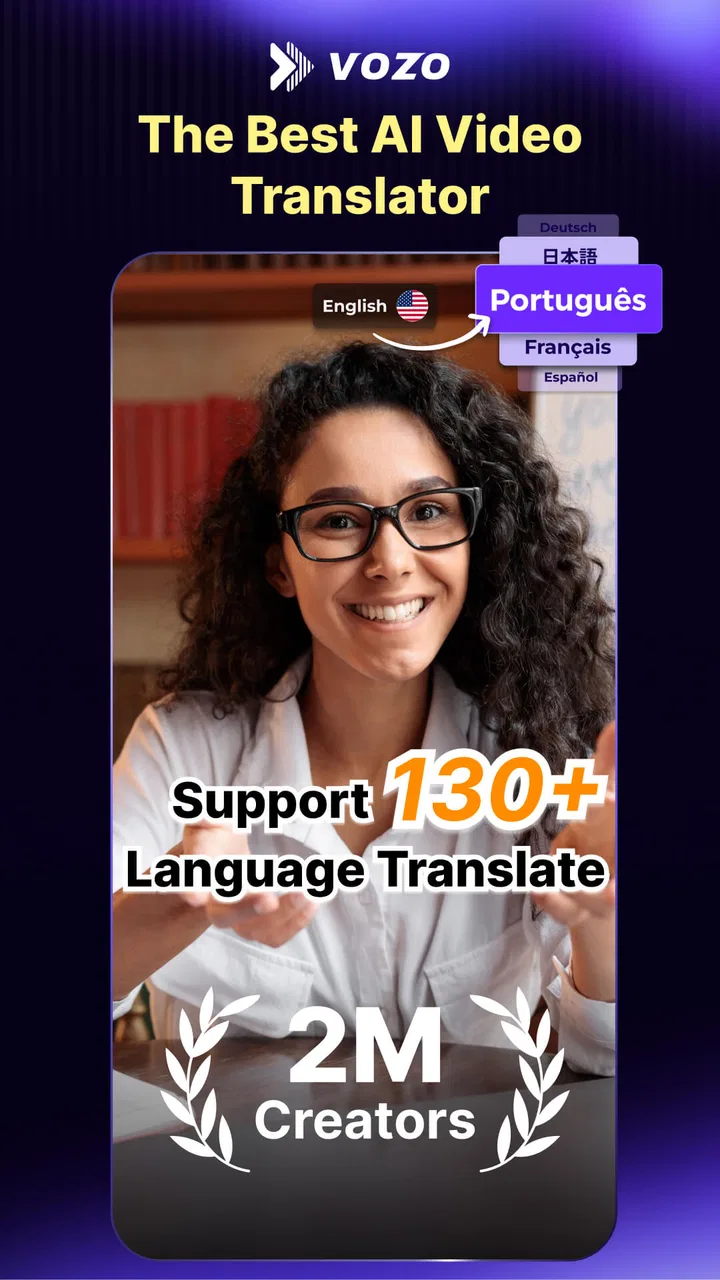
Vozo AI Video Translator & Dub
- 4.4
- Rating
- 1.00M
- Installs
- Free
- Price

 Analysis by App-foxy
Adding captions to a short video sounds simple until you have to listen back, type every line, fix timing, choose readable styling, and export a version that still looks good on a phone. That is the problem I focused on while using Blink Captions, a free video-editing app from Blink by Vozo AI for Talking Videos. Its central appeal is automatic caption creation, supported by tools for avatar videos, talking photos, translation, and AI-generated images.
I found the caption workflow more useful than the broad feature list might suggest. It is aimed at people who want to publish quickly without opening a full desktop editor. A creator making a talking-head clip, a small business owner preparing a product explanation, or a student turning a spoken presentation into a shareable video can all benefit from reducing the most repetitive part of editing. The app is available to Everyone, runs on Android 9 or later, and is free to start, although optional purchases range from $7.99 to $189.99 per item.
That does not make it the right editor for every project. I would not choose it as my main tool for a long documentary, a carefully mixed interview, or a video that needs precise timeline control. Its strength is narrower and clearer: turning spoken content into captioned, social-ready video with less manual work. Once I treated it as a fast captioning assistant rather than a complete replacement for professional editing software, the experience made much more sense.
You May Also Like

 Blood Strike: 2.5 Anniversary
Blood Strike’s Loadouts Turn Every Drop Into a Tactical Gamble
A close look at Blood Strike’s custom loadouts: how fast access to signature weapons reshapes its battle royale rhythm, rewards preparation, and narrows the gap between fights.

 Pandora - Music & Podcasts
Pandora’s Music Is Easy to Start, but Harder to Recover
Pandora’s strength is its low-effort path from a seed to a station. Its weak spot is how much confidence it asks you to place in connection, setup, and quiet recovery.

 8 Ball Pool
 Is Built on Rivalries, Rematches, and Routine
A close look at the rivalries, rematches, shared routines, and unanswered safety questions that turn a quick pool match into a persistent mobile community.

 Samsung Music
’s Quiet Strength Is Playing What You Already Own
Its reach comes less from spectacle than from dependable access to a personal library. That simplicity is both the app’s strongest retention engine and its ceiling.

 AccuWeather: Weather Radar
AccuWeather Review: A Quick, Clear Forecast for Everyday Decisions
For everyday plans, the best forecast is the one you can understand quickly. AccuWeather makes rain timing, radar, and local conditions easy to act on, with a few trade-offs.

 Hill Climb Racing
Why Hill Climb Racing Still Turns Crashes Into One More Run
A tiny car, a bumpy hill and one more upgrade: Hill Climb Racing keeps resurfacing because its simple chaos makes every near-miss feel personal.
More From Our News Desk



Automatic captions are the reason to open this app
The most valuable capability here is the automatic caption workflow. Instead of writing a transcript from scratch, I can begin with a recorded clip and let the app create a text layer that follows the speech. That changes the job from transcription to correction. In practice, that is a major difference when a video contains several sentences, quick explanations, or a message that needs to be published while the subject is still timely.
Captions also make a video more usable when sound is unavailable or inconvenient. Someone watching on public transport, in a waiting room, or during a quiet break can understand the message without turning up the volume. For spoken content, the words are not decoration; they carry the meaning. Blink Captions puts that meaning directly on the screen, which can help a short clip communicate even when the viewer is not listening.
I especially like this approach for videos where the speaker is already doing the visual work. A person explaining a recipe, showing a quick demonstration, introducing a service, or commenting on an event does not necessarily need elaborate effects. The important task is making the speech clear and easy to follow. Automatic captions address that need more directly than a collection of transitions or filters would.
The app’s other tools make the caption feature more flexible. A talking video can be prepared around a presenter, while avatar and talking-photo features offer alternatives when I do not want to appear on camera. Translation can help adapt the same idea for another audience, and image generation can support the visual side of a clip. I would still treat those features as secondary until the captioned message itself is accurate and readable.
What I check before exporting
Automatic text is a starting point, not a final proofread. I always check names, product terms, numbers, shortened words, and sentences spoken quickly. These are the places where an otherwise convincing caption track can become misleading. A caption that changes one important word may look polished while communicating the wrong idea.
I also watch the entire video once with the sound lowered. This reveals problems that are easy to miss while editing: a caption appearing too late, a line disappearing before I finish reading it, or a long sentence crowded into a small area. Reading speed matters as much as spelling. If the viewer has to rush, I would rather split the sentence into shorter pieces than preserve the exact spoken rhythm.
The practical rule is simple: let automatic captions save time, but keep the final responsibility for meaning and timing. That rule applies particularly to instructional clips, announcements, and translated material, where a small transcription error can cause more trouble than a visual imperfection.
How the workflow feels in everyday use
I would begin with one focused clip instead of importing a long collection of footage. A short source makes it easier to see whether the speech is clear enough for automatic recognition and whether the finished layout suits the intended platform. After the captions are generated, I would read through every line, correct the obvious mistakes, and then review the visual balance of the text against the speaker or subject.
This order is more efficient than styling everything first. There is little value in choosing a beautiful caption treatment before knowing whether the transcript needs substantial correction. It is also easier to notice a missing phrase when I am looking at the words in a plain, functional editing state rather than being distracted by decorative choices.
For a small business, I would create a repeatable routine: record the explanation in a quiet place, keep the opening sentence direct, generate the captions, correct the business name and key terms, and then check that the text does not cover the item being demonstrated. This workflow turns a casual phone recording into something more accessible without forcing the owner to learn a complex desktop editor.
For a creator, the useful trick is to write the spoken script with captions in mind. Short sentences are easier for automatic transcription and easier for viewers to read. I would avoid packing several ideas into one breath. Pauses help the speaker, the recognition process, and the person following along on screen.
The translation feature can extend this workflow, but I would not assume that a translated caption track is ready without review. Idioms, product names, local expressions, and technical vocabulary often need a human decision. I would use translation to create a first draft for another language, then read it as a native speaker would rather than checking only whether each word appears plausible.
The same caution applies to avatar videos and talking photos. They can be useful when a visual presenter is needed but a new recording is inconvenient. However, the format can feel less personal than a real speaker, so the message needs to be especially clear and concise. I would use these options for straightforward announcements, explainers, or visual prompts, not for every kind of communication.
A realistic phone-based scenario
Imagine I have recorded a short video showing how a café prepares a seasonal drink. The footage contains a few spoken steps, background movement, and a final invitation to visit. I can use Blink Captions to turn the explanation into on-screen text, correct the drink name, and make sure the captions do not cover the cup or the barista’s hands. A viewer can follow the process with the sound muted, while the café avoids spending an afternoon typing and timing every sentence.
The important advantage is not that the app removes all editing. It shortens the repetitive section that usually prevents people from adding captions at all. I still need to make editorial decisions: what to say, which details matter, where to place the text, and whether the final clip feels too busy. The app helps with execution, while I remain responsible for the communication.
Another useful case is a quick community update. If I record a short announcement about a schedule change, captions make the information easier to catch while scrolling. I would keep the message brief, verify every date or time displayed in the text, and watch the export once before sharing. That final check is worth doing because an automatic caption error in an announcement can create confusion.
Where the convenience comes with tradeoffs
The biggest tradeoff is control. A dedicated editor usually gives more detailed timeline editing, audio mixing, layered composition, and fine adjustment of individual elements. Blink Captions is more attractive when speed and simplicity matter than when I need a highly engineered production. If I am building a multi-scene project with precise cuts and several audio sources, I would rather use a traditional editor and bring captions in as part of that larger workflow.
There is also a quality tradeoff in automatic recognition. Clear speech recorded close to the phone is easier to process than overlapping voices, heavy background noise, strong accents, or specialized vocabulary. I would not judge the app solely by the first transcript. The real question is how much correction remains after generation. For clean, direct speech, the time saving can be meaningful; for difficult audio, manual editing may take longer than expected.
Free access is helpful for trying the workflow, but the presence of in-app purchases means I would inspect the available editing path before committing to a regular production routine. The purchase range is broad, so I would avoid assuming that every tool or export preference belongs to the no-cost experience. For occasional personal clips, starting free is sensible. For a business producing content frequently, I would compare the likely ongoing cost with the value of the time saved.
I also would not use the app as a substitute for careful accessibility work in every situation. Captions generated from speech are useful, but accessibility can require more than a transcript. Speaker changes, sound effects, emphasis, and visual context may need additional treatment. If the video is important to a broad audience, I would review whether the captions describe enough of what is happening rather than simply reproducing spoken words.
Another limitation is creative consistency. A creator who publishes a recognizable series may want exact typography, spacing, animation behavior, and brand treatment across every episode. A specialized design or editing tool may offer more dependable control for that purpose. Blink Captions is better suited to getting a clear captioned video finished quickly than to acting as a complete brand-production system.
How it compares with familiar alternatives
Compared with typing captions manually in a general video editor, Blink Captions is more convenient at the beginning of the process. I spend less time creating the first text track and more time reviewing the parts that actually need judgment. A general editor remains stronger when I need detailed cuts, layered visuals, or a carefully controlled soundtrack.
Compared with a social platform’s built-in caption tool, this app can be useful when I want to prepare the video before uploading it or keep a captioned version for several destinations. Platform tools are convenient for publishing immediately, but they may not fit a workflow where I want to review the text, reuse the finished file, or combine captions with other AI-assisted video formats.
Compared with a dedicated transcription service, the appeal here is the connection between the words and the video. I am not only producing text; I am working toward a finished visual post. A transcription-first service may be preferable when the main goal is a clean written record, searchable notes, or a long interview transcript. Blink Captions makes more sense when the transcript exists to improve the video itself.
Who gets the most value from it
I think this app is a strong fit for casual creators, educators making short lessons, small shops, independent professionals, and anyone who records spoken clips on a phone. It is particularly useful for people who know their message but do not want to spend time learning a complicated captioning timeline. The low entry price also makes experimentation easy, provided the available free workflow meets the project’s needs.
It can also help a creator test a content idea quickly. Instead of spending hours polishing an unproven concept, I can make a short captioned version, check whether the explanation is understandable, and decide whether the idea deserves a more elaborate edit. That makes the app valuable before production, not only at the final publishing stage.
People who should skip it are those seeking a full professional post-production environment, exact control over every frame, or a dependable replacement for human transcription on difficult audio. I would also look elsewhere if my work depends on strict visual branding across many complex scenes. In those cases, the automatic caption feature may still be useful, but this app would probably be one tool in a larger workflow rather than the central editor.
The developer, Blink by Vozo AI for Talking Videos, has positioned the app around accessible AI-assisted video creation, and its reception suggests that many users find the approach worthwhile: it holds a 4.5 average from around 103 thousand ratings, with over 1 million installs. The app first appeared on February 28, 2023, and version 5.11 supports Android 9 and later. Those details make it feel like an established option for trying a caption-focused workflow rather than an obscure experiment.
Still, popularity does not remove the need to test it with my own voice, vocabulary, and editing habits. I would record a short sample, inspect the generated captions, try the correction process, and check the resulting video on a phone before planning a larger series. That small test answers the most important practical question: whether the time saved during transcription is greater than the time spent fixing the result.
My recommendation after using the caption workflow
Blink Captions is most convincing when I use it for a clear spoken message that needs to become a captioned video quickly. The automatic text generation can remove a tedious barrier, and the surrounding avatar, talking-photo, translation, and image tools give me several ways to build a visual post without starting from a blank timeline.
I would recommend it to a friend who regularly records short videos but avoids captions because the manual process feels too slow. I would tell that friend to keep the source audio clean, write in short sentences, proofread names and important details, and watch the final result with the sound reduced. Those habits make a bigger difference than simply pressing the automatic caption button.
My final view is positive but specific. This is not the app I would choose for complex editing or meticulous production control. It is the app I would open when the spoken message matters, the turnaround needs to be quick, and I want captions integrated into the video rather than added as an afterthought. For that focused job, it offers a practical shortcut while still leaving enough room for personal judgment.
FAQs for Vozo AI Video Translator & Dub
01What is Blink Captions by Vozo AI, and how does it work?
Blink Captions by Vozo AI is an innovative app designed to add subtitles to your videos automatically. Using advanced AI technology, it analyzes your audio and generates accurate captions in real-time. This feature is particularly useful for content creators looking to enhance accessibility and engagement with their video content.
02Is Blink Captions by Vozo AI free to use, or does it require a subscription?
Blink Captions offers a free version with basic features, which is ideal for casual users. However, for those seeking advanced functionalities, such as unlimited captioning and premium fonts, a subscription is available. Pricing varies based on the plan you choose, offering flexibility to suit different needs.
03Can Blink Captions handle multiple languages?
Yes, Blink Captions by Vozo AI supports multiple languages, making it a versatile tool for diverse user bases. The app can automatically detect and transcribe several popular languages, allowing users to create multilingual content efficiently. It's perfect for reaching a global audience with your videos.
04How accurate are the captions generated by Blink Captions?
The accuracy of captions generated by Blink Captions is impressively high, thanks to its cutting-edge AI technology. While it performs exceptionally well with clear audio, users might experience minor inaccuracies with background noise or complex dialogues. Regular updates continue to enhance its precision and reliability.
05What devices are compatible with Blink Captions by Vozo AI?
Blink Captions is compatible with both Android and iOS devices, ensuring a wide range of users can benefit from its features. The app requires Android 5.0 or later and iOS 11.0 or later, making it accessible to most smartphone users. Check your device's compatibility before downloading.
Pros
- Accurate real-time transcription.
- Supports multiple languages.
- User-friendly interface design.
- Customizable caption styles.
- Seamless integration with video apps.
Cons
- Occasional delays in captioning.
- Limited offline functionality.
- High battery consumption.
- Requires strong internet connection.
- Subscription needed for premium features.

Vozo AI Video Translator & Dub
Gallery